Greetings all 
Blockonomics has always believed merchants should have full control over their crypto payments - no gatekeepers, no middlemen. That’s why we’re excited to announce full USDT support in our WooCommerce plugin, now live in version 3.8.2 
This update gives you more payment options while keeping the security, reliability, and ease of use you already trust from Blockonomics.
How to update 
Update to version 3.8.2 or higher directly from your WordPress Dashboard or download the latest version from the WordPress Plugin directory.
How to start accepting USDT Payments on WooCommerce? 
-
Download the latest Blockonomics Plugin (version 3.8.2 or higher) from the WordPress Plugin directory.
-
Login to the Merchant Dashboard, add your USDT Wallet, and enable the payment method on your Store (as seen in gif below)
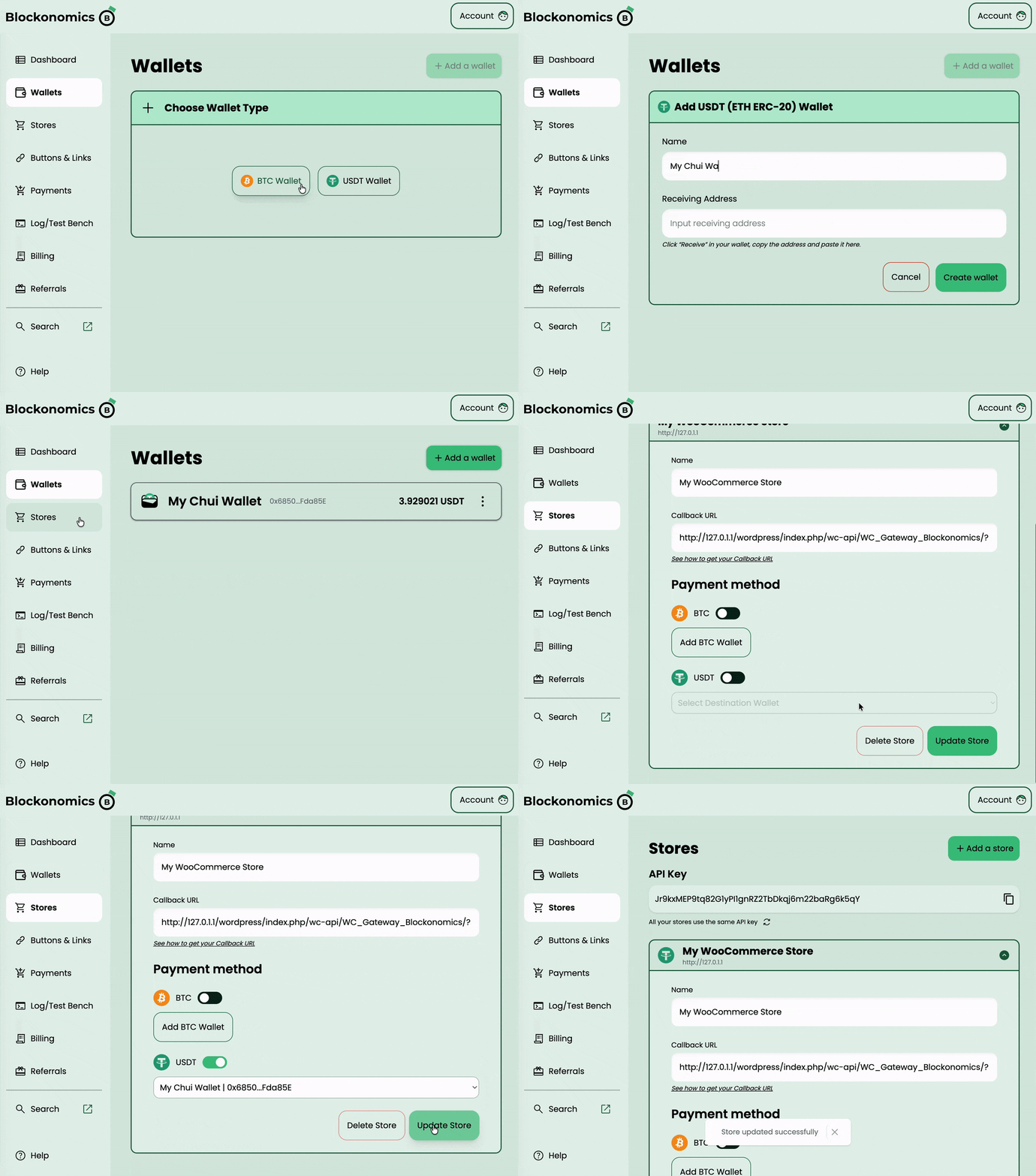
-
Copy your API Key from Store page and paste it in your Plugin settings. Click Test Setup. You should see a
 with the crypto you have enabled on the store, as seen below
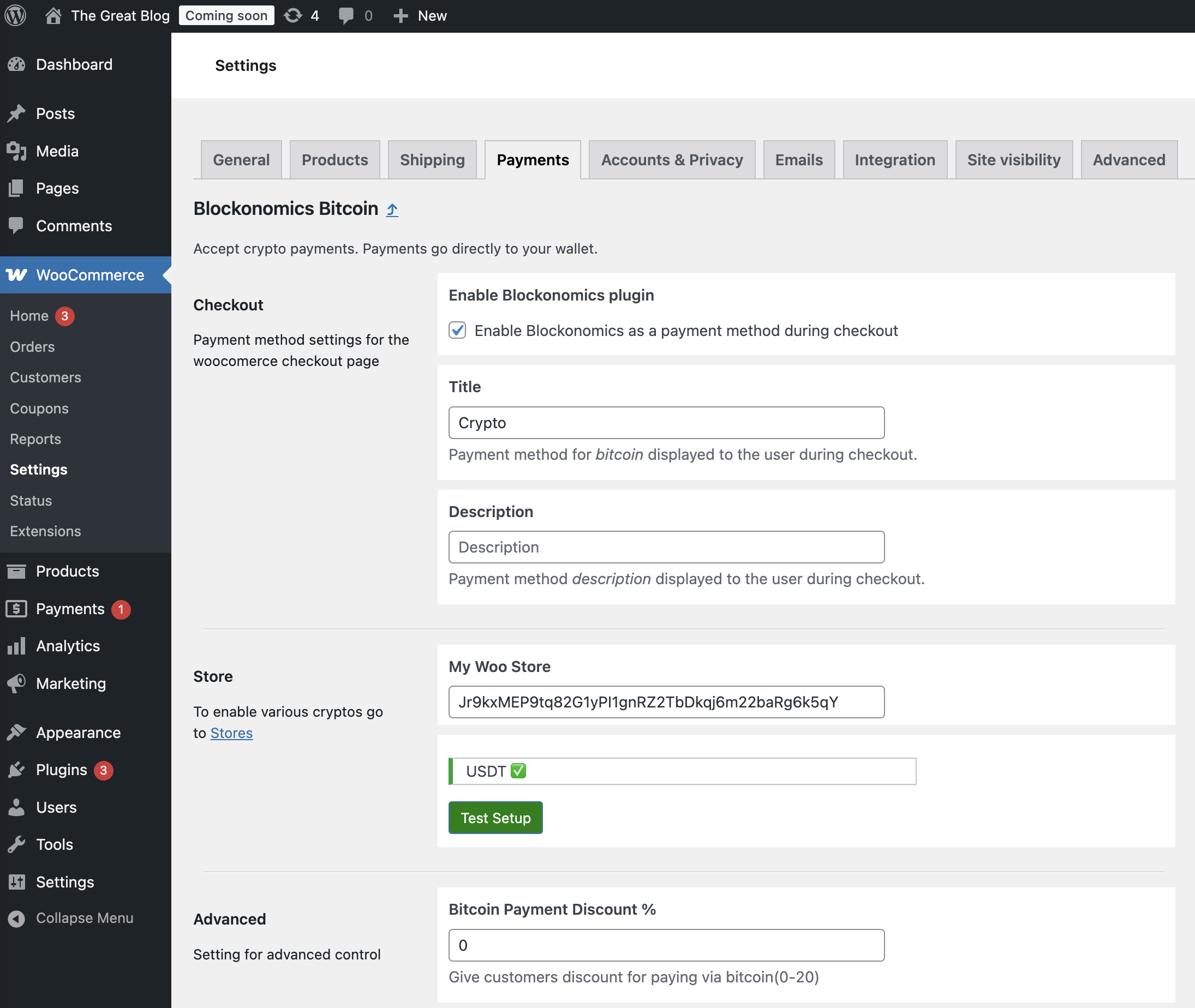
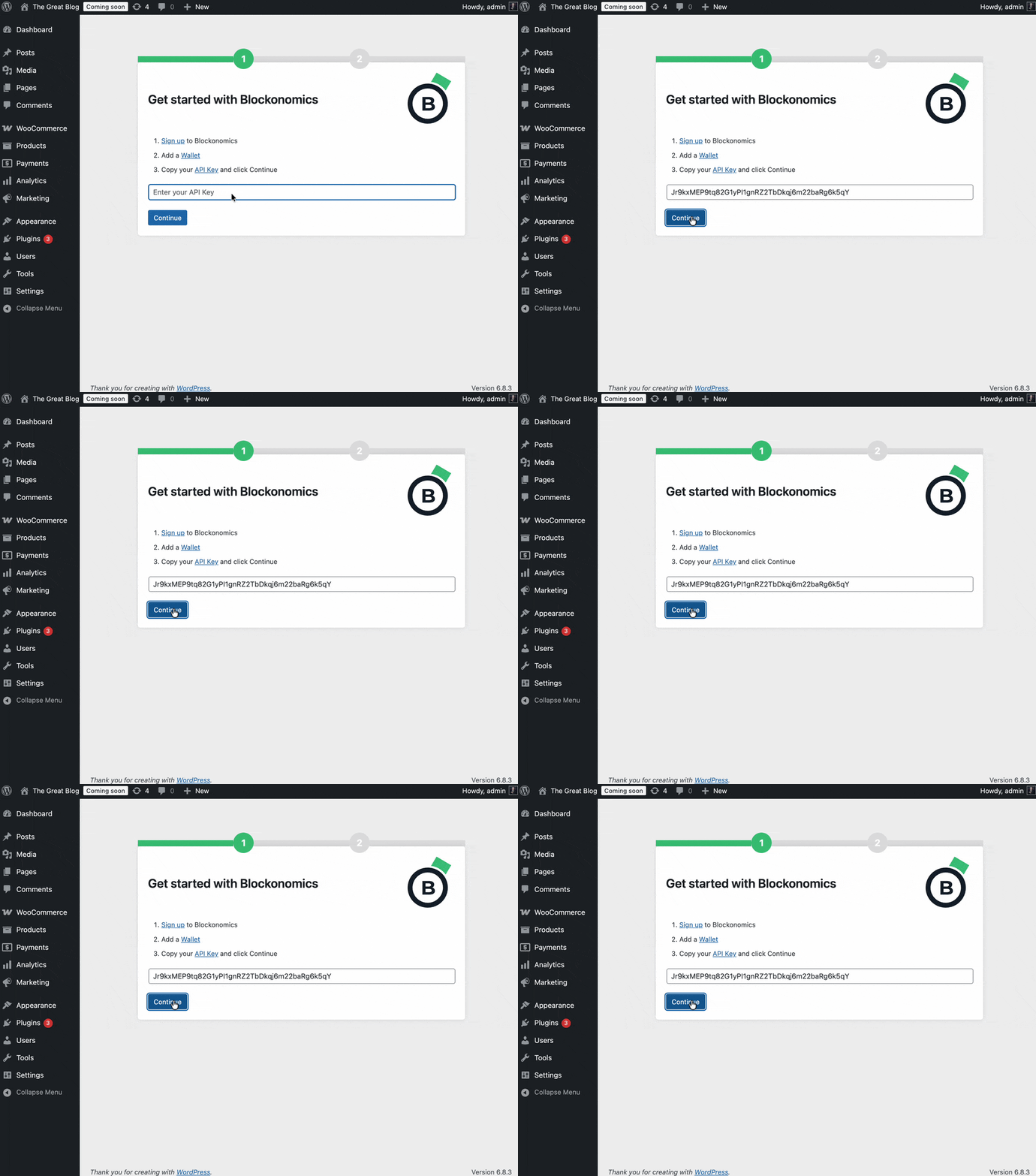
If you are a new user configuring the plugin for first time, just follow along our setup wizard and you should be good to go 
Which network is supported for USDT payments?
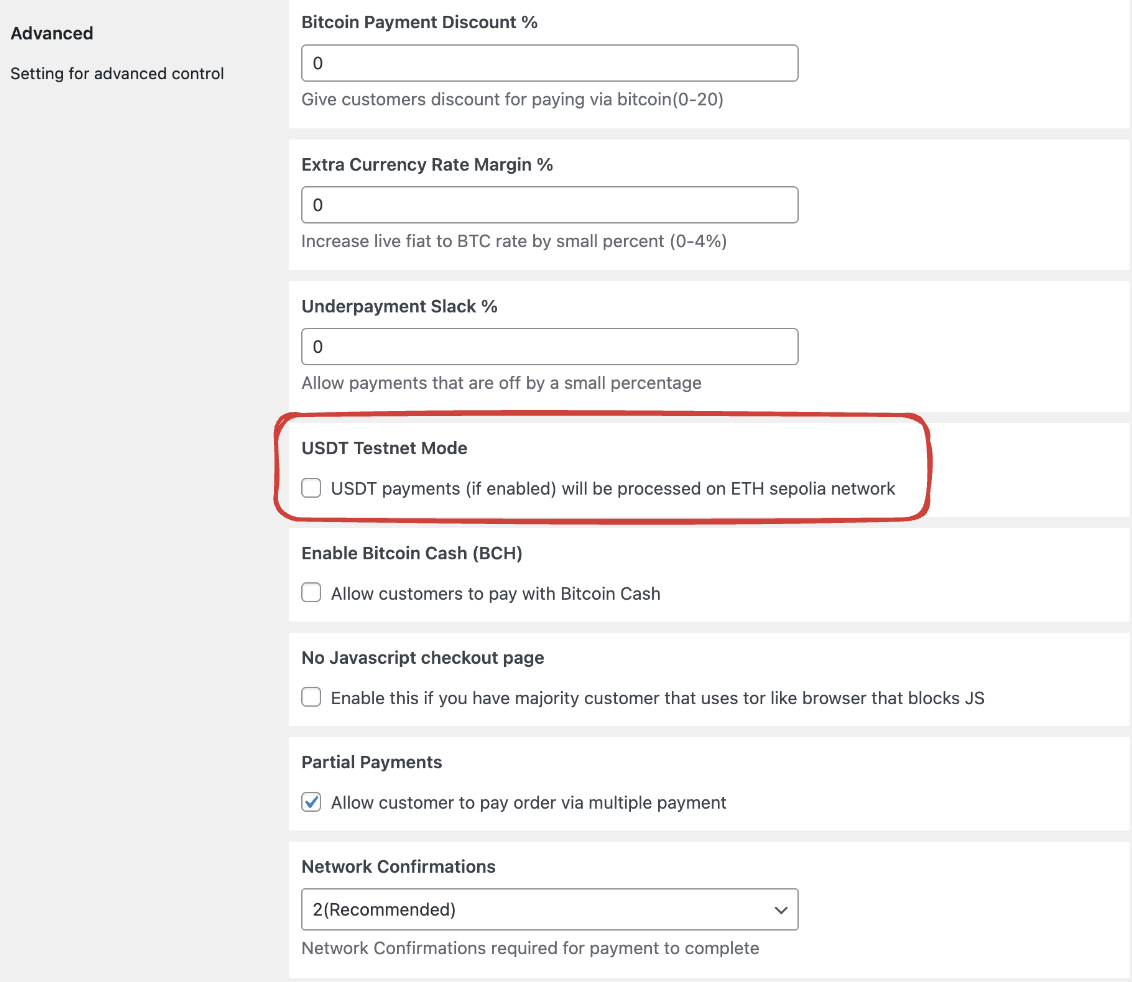
We are supporting the USDT payments on Ethereum Mainnet (ERC-20). We’ve also added a Sandbox mode in the plugin settings. Here you can enable the Sepolia Testnet to test the integration without spending any real money.
Compatibility
This update has been tested with WordPress 6.8.1 onwards, as well as WooCommerce 9.8.3 onwards.
Known Limitations
- Mobile wallets are not yet supported. Only browser based web3 wallets are supported.
- You must hit the Test Setup button in plugin settings in order to add or remove a crypto supported on your Store and to reflect the store name being updated in the settings.
- Currently plugin don’t provide a way to disconnect the wallet once it is connected to a Store. You need to do that from the wallet itself. You need to navigate to Wallet settings > All permissions and choose website for which to disconnect the wallet. If you have trouble finding that, just let us know what wallet you are using and we can assist you here, or via our Support Portal

To conclude, everything we build at Blockonomics is for you. We’re always listening to your feedback and working to make our tools better - because your needs come first. If you have suggestions, need a new feature, or just want help getting set up, don’t hesitate to reach out.